QR Menu Table Card Readability Checklist for Restaurants
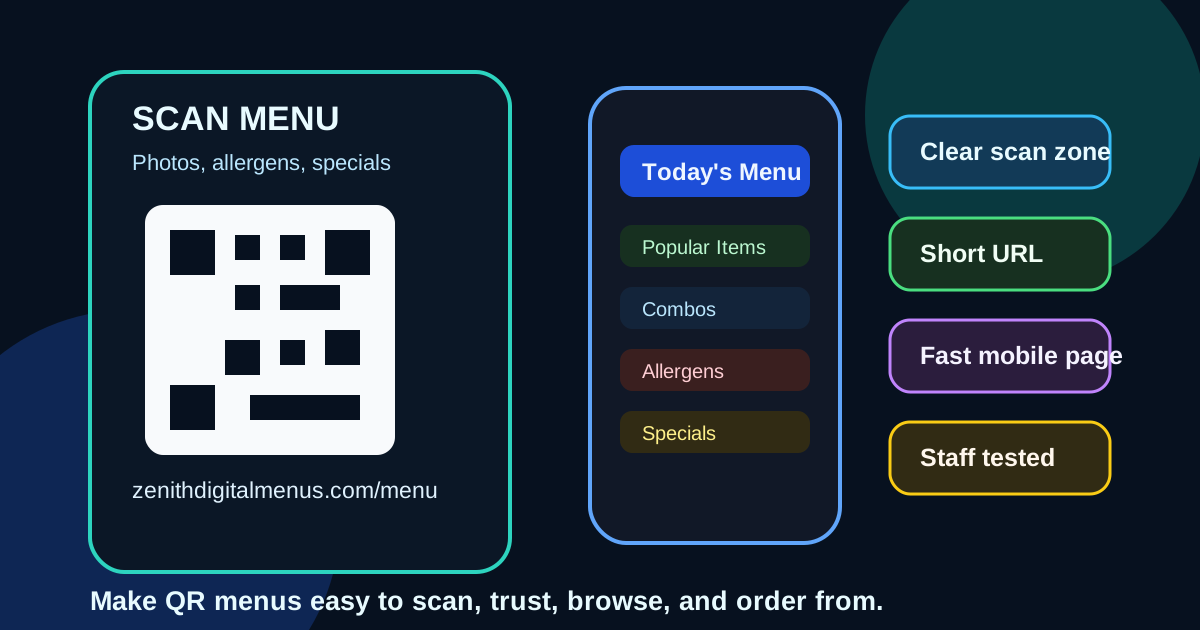
QR menus are no longer a novelty. Guests have seen enough of them to know when the experience is smooth and when it feels like extra work. A table card with a tiny code, vague copy, poor lighting, and a slow mobile page can make customers impatient before they even see the food. A clear QR menu can do the opposite. It can help guests browse comfortably, check allergens, compare photos, and decide faster without waiting for a printed menu.
The difference usually comes down to readability. The code has to be easy to scan, but the whole table card also has to be easy to understand. Guests need to know what the code opens, whether it is official, what to do if scanning fails, and how the phone menu relates to the digital menu boards behind the counter. This checklist helps restaurants review those details before printing table cards, stickers, counter signs, or patio inserts.
Make the scan area obvious from three feet away
A QR code should not feel hidden inside a busy design. Guests often see the card from a standing position, across a table, or while holding a drink, bag, or child. Give the code a clear area with enough white space around it. Do not crowd it with logos, tiny icons, decorative borders, or photos that compete for attention.
As a practical rule, the code should be one of the first things a guest notices. For table cards, a code around 1.25 to 1.75 inches wide usually works well, depending on viewing distance and print quality. For counter signs or window signs, go larger. If the card has multiple messages, use a simple label above the code such as Scan for full menu, photos, and allergens.
Use plain instructions, not clever copy
QR menu copy should be boring in the best way. Guests are not trying to decode a slogan. They want to know what happens when they point their camera at the code. Use short, direct language that matches the restaurant experience.
- Good: Scan for today's menu and specials.
- Good: View ingredients, photos, and drink options.
- Good: Order at the counter when ready.
- Avoid: Unlock the flavor journey.
If the QR menu is for browsing only, say so. If guests can order from the phone, say that clearly too. Confusion about whether the phone menu is informational or transactional creates unnecessary staff questions.
Add a short URL fallback
Every QR table card should include a short written URL under the code. Some guests have older phones, damaged cameras, strict security settings, or simply prefer typing. A short fallback also makes the card feel more trustworthy because guests can see the destination before scanning.
Keep the fallback simple. A restaurant domain with a clean path, such as examplepizza.com/menu, is easier to trust than a long tracking link. If you use a third-party ordering platform, consider a branded redirect from your own domain. The customer should feel like the experience belongs to your restaurant, not a random link service.
Match the QR menu to the menu board language
One of the easiest ways to create confusion is using different names across the table card, QR menu, printed specials, POS buttons, and digital menu boards. If the board says Spicy Chicken Bowl, the QR menu should not call it Fire Bowl unless staff are trained to explain the difference. Guests compare screens, phones, and verbal answers more than owners realize.
Before printing QR cards, review the main categories, item names, modifiers, combo names, sizes, and prices against the menu board. The phone version can include more detail, but the core language should match. Consistency helps guests order with confidence and helps staff avoid translation work at the register.
Keep the mobile page faster than the guest's patience
The table card can be perfect and still fail if the mobile menu loads slowly. Guests scan while hungry, distracted, and often on weak indoor cellular service. Heavy photos, pop-ups, app prompts, tracking scripts, and PDF menus can make the experience feel broken.
Test the QR menu on real phones inside the dining room, on cellular data, not just on office Wi-Fi. The first useful content should appear quickly. A guest should not have to pinch, zoom, dismiss a newsletter form, or download a PDF just to see appetizers. If photos are important, compress them and use them selectively. Speed is part of readability.
Design the phone menu for decisions, not storage
A QR menu should not be a dumping ground for every possible detail. The phone gives you more room than a wall board, but guests still need structure. Start with the categories people actually use: popular items, combos, entrees, sides, drinks, desserts, kids, allergens, and seasonal specials. Put the most common decision paths near the top.
Long menus should use anchored category links, clear headings, and short descriptions. Avoid forcing guests to scroll through catering trays, old promotions, or rarely ordered add-ons before they reach the everyday menu. If an item is not available during the current daypart, either hide it or label availability clearly.
Place table cards where scanning feels natural
Placement matters more than many restaurants expect. A card behind a napkin holder, under a condiment bottle, or flat on a glossy table may technically be visible but awkward to use. Guests should be able to scan without moving half the table setup.
For dine-in tables, use upright cards or angled holders where possible. For patios, consider glare, wind, and fading from sunlight. For counter service, place a QR sign where guests wait, not only at the register where they feel rushed. The best location gives customers a few seconds to browse before they need to speak to staff.
Check lighting, glare, and print finish
Glossy table cards can look premium but cause glare under pendant lights or near windows. Dark designs can match the brand but reduce contrast around the QR code. Small codes can work in a proof but fail after lamination, wear, sauce stains, or low light.
Print one test card before ordering a full batch. Scan it from different angles, under real restaurant lighting, and after placing it in the holder you plan to use. Then ask a staff member and someone who did not design it to scan it. If they pause, squint, rotate the card, or ask what it does, fix the design before printing the full run.
Use QR menus to support staff, not replace them
A strong QR menu answers common questions before a guest reaches the counter. It can show ingredients, spice levels, substitutions, gluten-free notes, photos, drink pairings, and seasonal details. That helps staff spend less time repeating basics and more time guiding orders.
Still, the QR menu should not become an excuse to remove human help. Some guests will not want to scan, and some will ask for recommendations. Train staff to treat the QR menu as a support tool, not a barrier.
Review the QR experience whenever the menu changes
The worst QR menu problems usually appear after updates. A price changes on the board but not on the phone menu. A seasonal item ends but the table card still promotes it. A code points to an old page. These mistakes make guests question the whole operation.
Add QR menu review to the same workflow as digital menu board updates. When prices, hours, specials, item names, or ordering rules change, check the mobile page and scan the physical cards. Keep one sample card near the manager station so staff can test it quickly.
Run a guest test
Before ordering a set of cards, hand the test design to someone who has not seen it. Ask them to scan it, find a popular item, find a price, check a modifier, and explain where they would order. Watch quietly. The problems they encounter are the problems customers will encounter.
This test takes five minutes and can save a full reprint. You may learn that the code is too small, the URL looks suspicious, the menu loads too slowly, the category names are unclear, or the table card does not explain whether ordering happens on the phone or at the counter. Fixing those issues before launch is cheaper than training staff to apologize for them later.
Make the QR menu feel like part of the restaurant
A useful QR table card is clear, trustworthy, fast, and connected to the rest of the menu system. Give the code enough space, use plain instructions, add a short URL, match the menu board language, test the mobile page on real phones, place cards where scanning feels natural, and review the destination whenever the menu changes.
Restaurants do not need QR menus to be flashy. They need them to reduce friction. When guests can scan easily, understand the destination, browse quickly, and order with confidence, the QR menu becomes a better customer experience instead of another piece of table clutter.
Need QR menus and digital menu boards that stay consistent?
Zenith Digital Menus designs, installs, and manages restaurant digital menu systems that keep table cards, mobile menus, and in-store boards clear. Request a consultation.